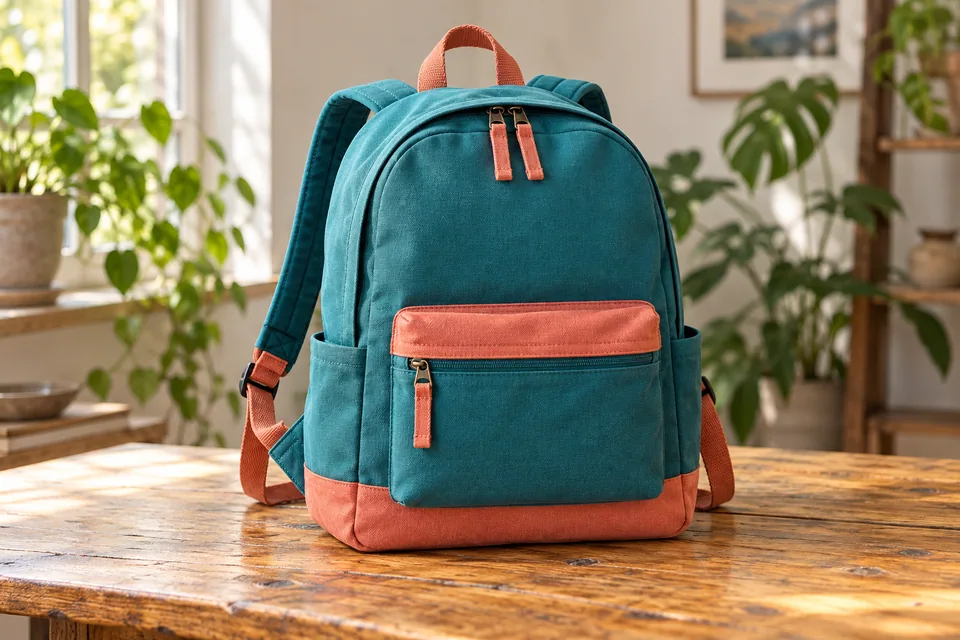
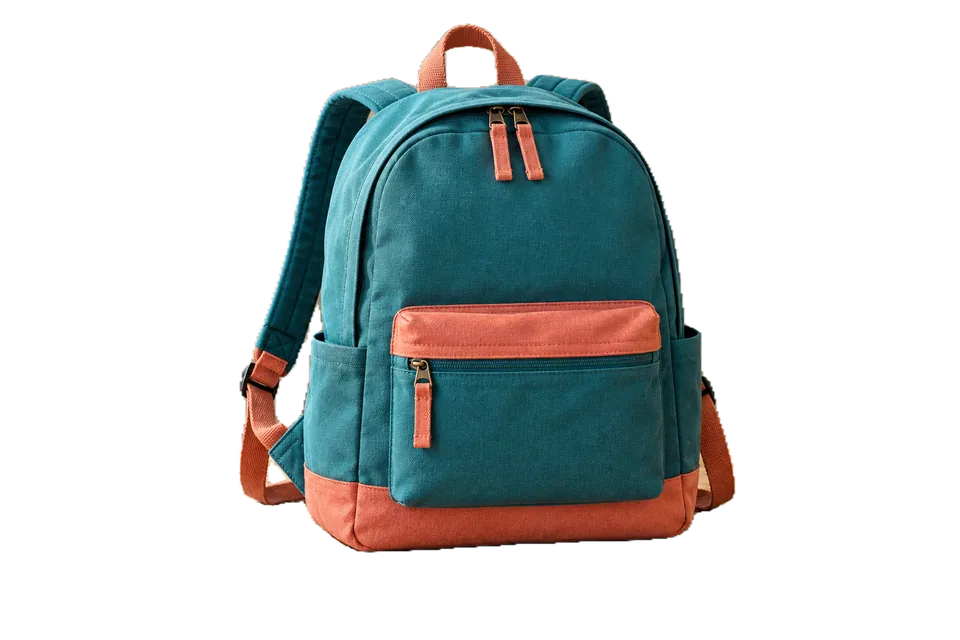
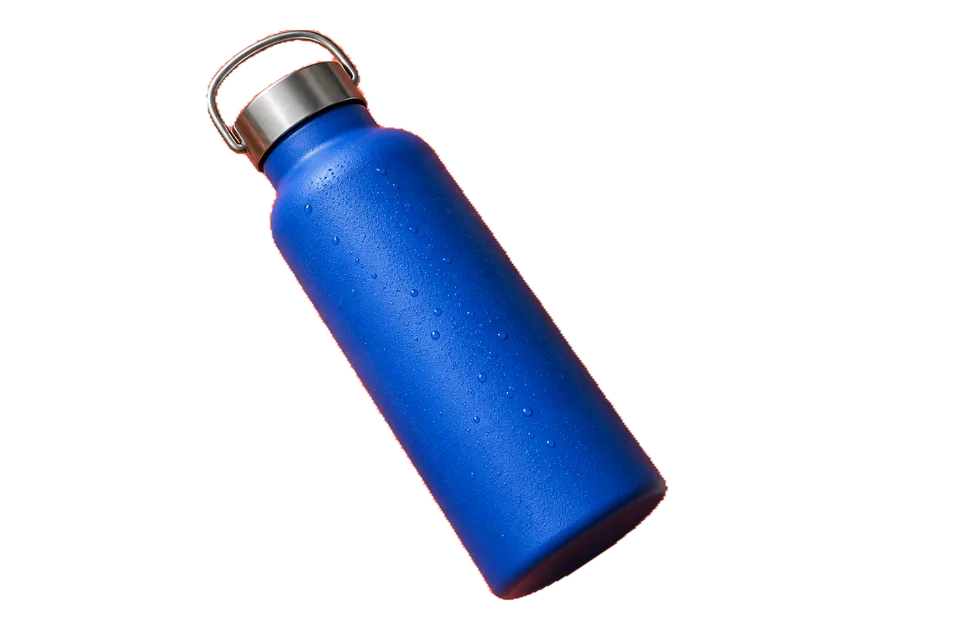
Background Remover separates the main subject from an image and creates transparency around it. It is useful for product photos, portraits, catalogs, thumbnails, posts, composites, and files that need their background removed.
The automatic result is the starting point. Compare original and result, inspect edges, and use the mask to restore important parts or remove leftover areas.
Choose the right model
BiRefNet Lite is the default and best option for people, products, pets, and varied objects. Smaller models are specialized: MODNet and portrait models work better for people, selfies, hair, and soft edges; fast people models are not general cutout tools for products or pets.
An automatic mask is not a perfect promise
The tool finds what appears to be the main subject but does not fully understand photographic intent. Similar backgrounds, reflections, fine shadows, transparency, smoke, wires, multiple people, or unusual objects can need manual correction. Clearly separated subjects usually produce more direct results.
Protect and remove with the brush
Use Protect for hair, fingers, clothing, straps, cords, accessories, and product details that must remain. Use Remove for areas that should become transparent. Use a smaller brush and high zoom around difficult edges. Changes affect only the active item's mask, not the original file.
Batch and transparency
Process the full batch or only selected images. With a large batch, start with one representative photo to confirm model and settings. Use PNG to preserve transparency. Transparent WebP also works when the destination supports it. JPEG does not retain transparency.
Which model should I use for varied objects?⌄
Start with BiRefNet Lite. It is the recommended default for people, products, pets, and varied objects.
Are smaller models worse?⌄
Not necessarily. They are specialized and can be better for portraits, but were not made for general cutouts of products, pets, or complex objects.
Why did part of my object disappear?⌄
Fine detail, colors similar to the background, transparency, reflections, and shadows can confuse the mask. Use Protect to restore the area.
Why is background still visible?⌄
A background similar to the subject can be interpreted as part of it. Use Remove to mark those regions.
Can I process multiple images?⌄
Yes. Add a batch and process every image or only selected items with the same model.
Which format keeps transparency?⌄
PNG is the safest choice. WebP also keeps transparency when the destination app supports it.
Review hair, fine shadows, transparency, and edges at a larger size before approving the batch.