CHAMMILION
ABOUT AI DENOISERUnderstand noise and grain reduction

AI Denoiser: reduce noise without losing a natural look

AI Denoiser attempts to reduce grain, color noise, and unwanted texture in low-light photos, high-ISO images, older cameras, compressed captures, and heavily processed files. The goal is not perfectly smooth imagery: natural texture matters in skin, fabric, hair, paintings, and fine detail.

Separate noise from other problems

Noise appears as colored dots, grain, or random variation in dark and even areas. Blur softens edges and calls for AI Deblurrer. Compression blocks, stains, and squares call for Artifact Cleaner. With dark compressed photos, start with denoising and compare before further treatment.
Start with moderate reduction

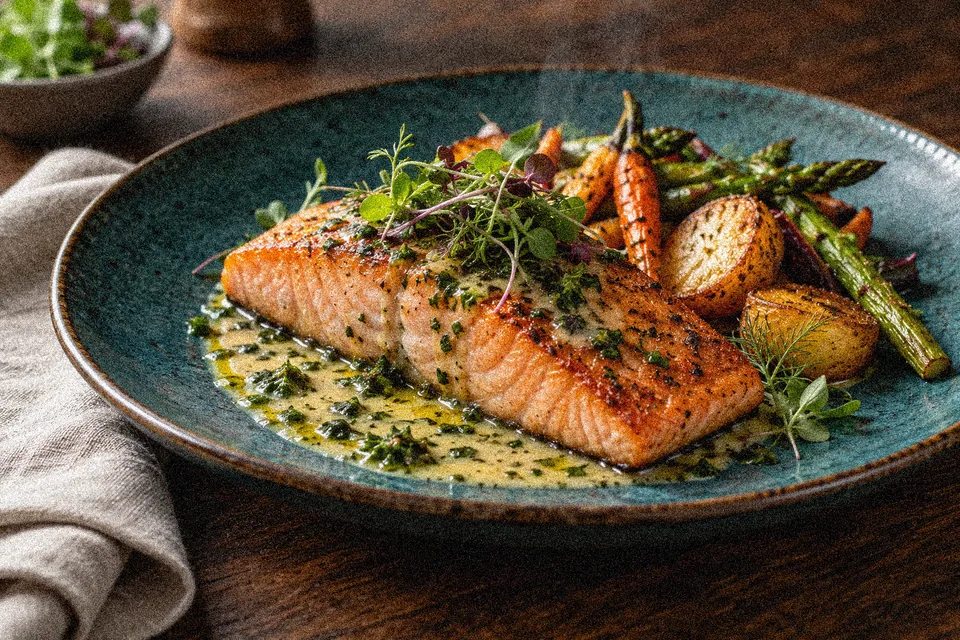
Strong reduction can erase skin texture, hair strands, hatching, film grain, and small detail. Inspect at high zoom, especially faces, eyes, clothing, sky, walls, and shadows. If the image looks plastic or overly smooth, lower intensity or try another model.

Photos, illustrations, and low light

Night photos, phone captures, older images, and files sent through apps often benefit from denoising. Illustrations, anime, and line art need more care because noise can be confused with texture, hatching, or intentional lines. Start with a gentle setup.

Batch work and comparison

Apply a configuration to a batch or selected files. Test one representative image first: a setting that works for night photos can over-smooth a detailed daytime image. Approve only results that preserve important detail.

Frequently asked questions

Does AI Denoiser remove every type of noise?

It can reduce many kinds of grain and visual noise, but cannot remove every issue without affecting detail.

Why does the image look smooth or plastic?

Noise reduction is too strong. Lower intensity or choose a gentler treatment.

Does it fix blur?

That is not its main purpose. Use AI Deblurrer for motion or focus blur.

Does it remove compression blocks?

It may improve some cases slightly, but Artifact Cleaner is better for blocks and compression damage.

Can I use it on phone photos at night?

Yes. Test and inspect at high zoom to preserve skin, hair, and dark areas.

Can I process multiple images?

Yes. Test one representative image, then apply it to a full batch or selected files.

Stop before the photo looks artificial. Moderate reduction is almost always more natural.

IMAGE LAB · AI GUIDE

How to use AI Denoiser

Recover low-light photos, high-ISO images, and grainy files without enlarging their resolution.

  1. 1Add the image or batch that contains noise.
  2. 2Choose Natural for a smoother look or Detail to retain more texture.
  3. 3Adjust AI strength and inspect texture in the enlarged comparison.
  4. 4Process and export only results that preserve the details you want.

Strong noise can hide real detail. Do not use maximum strength without checking skin, hair, text, and fine patterns.

AfterBefore
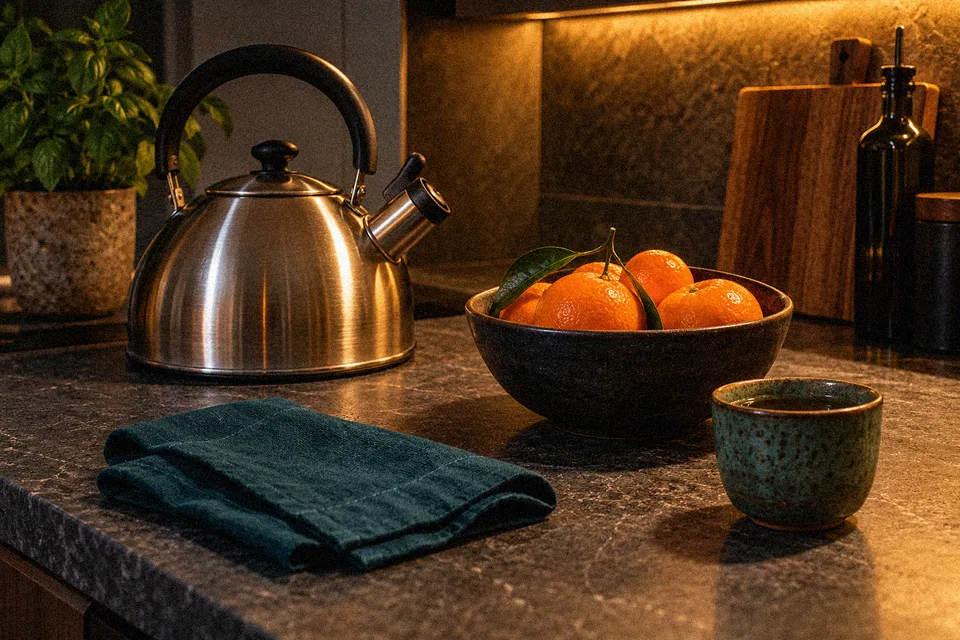
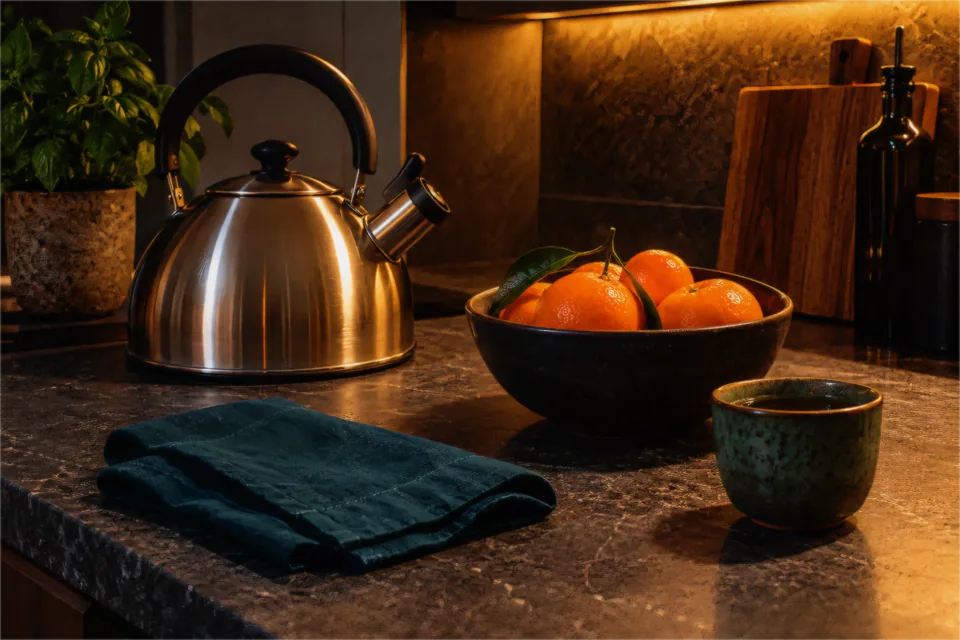
Drag to compareExample 1
AfterBefore
Drag to compareExample 2
AfterBefore
Drag to compareExample 3
Ecosystem Highlights
01 // 029
Finance Lab

Compound Interest Calculator

Build real-time financial projections, edit contributions directly on the chart, and see how each decision changes the future.

Launch tool
PDF Lab

Watermark PDF

Edit text or images over real pages with smart placement by format and a local batch.

Launch tool
PDF Lab

Split PDFs

Split PDF batches by range, individual page, or chunks and download the results as ZIP.

Launch tool
PDF Lab

PDF to Images

Convert PDF pages to local PNG or JPEG images in batches with ZIP download.

Launch tool
Image Lab

Image Resizer

Resize image batches by pixels, percentage, or maximum limits. Adjust aspect ratio, framing, and output format.

Launch tool
Calculators

Rule of Three Calculator

Calculate direct and inverse proportions for price, quantity, time, distance, and percentages.

Launch tool
Development

JSON Formatter

Format, validate, and minify JSON to review API responses, configuration files, and integrations.

Launch tool